CRM Integration with QuickBooks: Best Tools & Setup Guide (2026)
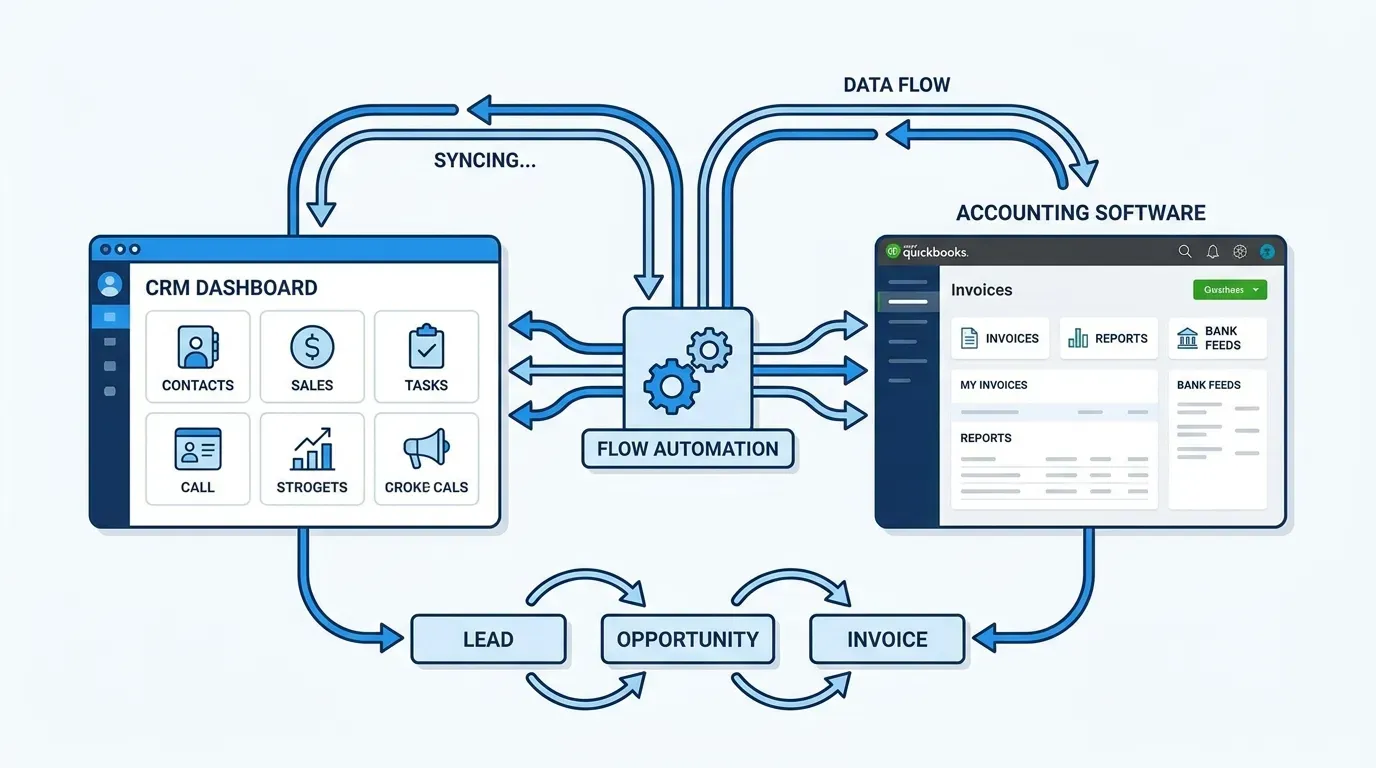
For most small and mid-sized businesses, the CRM and the accounting system are the two most-used pieces of software in the company. Connecting them properly transforms operations: a deal closes in the CRM, an invoice appears in QuickBooks; a payment posts in QuickBooks, the CRM marks the deal paid; a customer’s billing address updates anywhere, both systems reflect it.
Get the integration right and your finance and sales teams stop arguing about which system is “right.” Get it wrong and you spend years reconciling discrepancies between the two databases. This guide is a complete walkthrough of the best CRM-QuickBooks integration options in 2026 — native integrations, middleware approaches, and the gotchas that surface in real-world rollouts.
Why CRM-QuickBooks integration matters
Five things break when CRM and QuickBooks aren’t integrated:
- Manual invoice creation. Sales reps close deals in the CRM; someone re-keys customer info into QuickBooks. Hours per week wasted; errors guaranteed.
- Inconsistent customer records. Address change in QuickBooks doesn’t propagate to CRM; sales team ships marketing to old addresses.
- Missing payment status. Sales team doesn’t know if a customer paid; awkward follow-ups follow.
- Broken cash-flow forecasting. CRM shows pipeline; QuickBooks shows actual revenue; reconciliation is painful.
- No closed-loop reporting. Marketing can’t connect campaigns to revenue without aligned data.
A well-integrated stack solves all five.
What “good integration” looks like
A complete CRM-QuickBooks integration handles, at minimum, these data flows:
| Data | Direction | Typical sync frequency |
|---|---|---|
| Customer (contact) | Two-way | Real-time or every 15 minutes |
| Products/services | QuickBooks → CRM | Daily or on-demand |
| Invoice | CRM → QuickBooks | Real-time on creation |
| Estimate / Quote | CRM → QuickBooks | Real-time on creation |
| Payment | QuickBooks → CRM | Real-time on receipt |
| Tax codes | QuickBooks → CRM | On-demand |
| Sales orders (if applicable) | CRM → QuickBooks | Real-time |
| Customer balance | QuickBooks → CRM | Daily |
Beyond these, advanced integrations may sync: time entries, expenses, purchase orders, vendors, classes/locations, and multi-currency.
The best CRMs with native QuickBooks integration
1. Method:CRM (purpose-built for QuickBooks)
Method:CRM is built directly on QuickBooks. It’s the deepest CRM-QuickBooks integration on the market because it’s not really an integration — it’s a CRM that uses QuickBooks as its back-end database.
- Strengths: Deepest possible QB integration, two-way real-time sync of every QuickBooks object, custom workflows on top of QB data
- Weaknesses: CRM functionality is QB-tied; less standalone value if QB isn’t central
- Pricing: $25/user/month (Contact Management) to $49/user/month (CRM) to $74/user/month (CRM Pro)
- QB editions supported: QuickBooks Online, QuickBooks Desktop (Pro, Premier, Enterprise)
- Best for: Service-based businesses, professional services, contractors, anyone QB-centric
2. HubSpot CRM
HubSpot QuickBooks Integration →
HubSpot’s native QuickBooks Online integration syncs customers, products, and lets HubSpot create QuickBooks invoices from deals.
- Strengths: Free, easy setup, works alongside HubSpot’s free CRM tier
- Weaknesses: QB Online only (no Desktop); sync depth less than Method
- Pricing: Free with HubSpot CRM
- QB editions supported: QuickBooks Online only
- Best for: HubSpot users on QB Online wanting a simple integration
3. Salesforce + QuickBooks (via apps)
Salesforce doesn’t have a native QuickBooks integration but has multiple high-quality AppExchange options:
-
QuickBooks for Salesforce by DBSync — most popular Salesforce-QB integration
-
Breadwinner for QuickBooks — modern, well-reviewed
-
Workato Salesforce-QuickBooks recipes — workflow-based middleware
-
Greytrix Salesforce QuickBooks Connector — established connector
-
Pricing: Typically $30–$100/user/month on top of Salesforce
-
QB editions: Most support both Online and Desktop
-
Best for: Salesforce orgs of any size
4. Zoho CRM
Zoho CRM has a native QuickBooks Online integration plus tight integration with Zoho’s own Zoho Books.
- Strengths: Native integration, low cost, multi-currency support
- Weaknesses: Sync depth less than Method or Breadwinner
- Pricing: Included in Zoho CRM ($14–$52/user/month)
- QB editions: QuickBooks Online; QB Desktop via add-ons
- Best for: Zoho-stack businesses; cost-conscious SMBs
5. Insightly
Insightly QuickBooks Integration →
Insightly has a strong native QuickBooks Online integration as part of its core offering.
- Strengths: Solid native integration, included in standard pricing
- Weaknesses: QB Online only
- Pricing: Included in Insightly ($29–$99/user/month)
- Best for: Service businesses on QB Online
6. Pipedrive
Pipedrive QuickBooks Integration →
Pipedrive has a native QuickBooks Online marketplace integration and supports Zapier-based workflows for additional flexibility.
- Strengths: Easy setup, generates QB invoices from Pipedrive deals
- Weaknesses: Limited two-way sync compared to Method or Breadwinner
- Pricing: Included in Pipedrive ($14–$99/user/month)
- Best for: Pipedrive users on QB Online
7. Microsoft Dynamics 365 + QuickBooks
For Dynamics 365 users, integrations are typically through:
- Dynamics 365 to QuickBooks via DBSync — most popular
- Workato Dynamics-QuickBooks — middleware-based
- Custom via Power Automate — Microsoft-native automation
Note: most large enterprises on Dynamics 365 use a full ERP (Microsoft Dynamics 365 Finance, NetSuite, SAP) rather than QuickBooks. QuickBooks is generally an SMB system.
8. Keap (formerly Infusionsoft)
Keap’s QuickBooks integration is solid for small-business workflows where Keap handles CRM + automation + e-commerce.
- Pricing: Included in Keap subscriptions ($159–$229/month)
- Best for: Solo entrepreneurs and small agencies on Keap
Middleware approaches (when native isn’t enough)
When native CRM integrations don’t have the sync depth you need, middleware platforms fill the gap.
Zapier
Most popular general-purpose automation platform. Strong CRM-QuickBooks recipes (Zaps).
- Strengths: Easy setup, no coding, large recipe library
- Weaknesses: Per-task pricing scales fast; limited error handling for complex workflows
- Pricing: Free up to 100 tasks/month; $19.99/month for 750 tasks; scales to enterprise
- Best for: Simple sync workflows, small businesses
Make.com (formerly Integromat)
More powerful than Zapier with stronger conditional logic and lower per-task pricing.
- Strengths: More flexible than Zapier, better pricing at scale
- Weaknesses: Steeper learning curve
- Pricing: Free tier; $9/month for 10,000 ops
- Best for: Mid-complexity automation, agencies building workflows for clients
Workato
Enterprise-grade iPaaS with deep CRM-QuickBooks recipes.
- Strengths: Enterprise-grade reliability, deep error handling, complex workflow support
- Weaknesses: Expensive
- Pricing: Custom enterprise; typically $1,000+/month minimum
- Best for: Enterprise integrations with complex requirements
Boomi (Dell Boomi)
Mature enterprise iPaaS with strong CRM and accounting connectors.
- Strengths: Enterprise scale, mature platform
- Weaknesses: Expensive; requires technical setup
- Pricing: Custom enterprise
- Best for: Enterprise integrations across many systems
Tray.io (Tray)
Modern iPaaS competitor to Workato.
- Pricing: Custom enterprise
- Best for: Enterprise integrations, technical teams
LiveFlow
Specialized QuickBooks data sync to Google Sheets, Excel, and other destinations. Great for reporting alongside CRM.
- Pricing: From $59/month
- Best for: Real-time QuickBooks reporting alongside CRM data
QuickBooks-specific integration tools
For QuickBooks Desktop users, specialized tools:
QuickBooks Web Connector
Free Intuit-provided tool for connecting cloud apps to QB Desktop.
- Best for: Custom integrations to QuickBooks Desktop
Right Networks (hosted QuickBooks)
Hosts QuickBooks Desktop in the cloud, making integrations significantly easier.
- Pricing: $90+/user/month
- Best for: Companies wanting to keep QB Desktop but enable cloud integrations
Synder
E-commerce-focused QuickBooks integration tool. Connects Stripe, PayPal, Shopify, Amazon, etc., to QuickBooks.
- Strengths: Best e-commerce QB integration
- Pricing: From $61/month
- Best for: E-commerce businesses syncing to QuickBooks
Quick comparison table
| Approach | Best for | Pricing | Setup difficulty |
|---|---|---|---|
| Method:CRM | QB-centric service businesses | $25–$74/user/mo | Easy |
| HubSpot native | HubSpot + QB Online | Free with HubSpot | Easy |
| Salesforce + Breadwinner | Salesforce shops | $30–$100/user/mo | Medium |
| Zoho CRM native | Cost-conscious SMBs | Included w/ Zoho | Easy |
| Insightly native | Insightly users | Included | Easy |
| Pipedrive native | Pipedrive users | Included | Easy |
| Zapier | Simple workflows | $20+/mo | Easy |
| Workato | Enterprise complexity | $1,000+/mo | Medium |
| Custom dev | Highly specific needs | $5K–$50K | Hard |
How to choose your integration approach
Three questions:
Question 1: How critical is the integration?
- Mission-critical (operations stop without it) → Native CRM integration or Workato/Boomi
- Important but tolerable to fix manually → Native or Zapier
- Nice to have → Zapier or scheduled CSV imports
Question 2: How complex are your data flows?
- Simple (customer + invoice sync) → Native integration or Zapier
- Medium (custom fields, products, payment status, multi-currency) → Native integration or Make.com
- Complex (multi-step workflows, error handling, custom logic) → Workato, Boomi, or custom
Question 3: QB Online or QB Desktop?
- QB Online → Most native integrations work well
- QB Desktop → Method:CRM, Web Connector, or Right Networks
Setup walkthrough: HubSpot + QuickBooks Online
To make this concrete, here’s how to set up the most common integration scenario.
Prerequisites
- HubSpot CRM account (Free or paid)
- QuickBooks Online subscription
- Admin access to both
Steps
- Connect QuickBooks Online to HubSpot. In HubSpot, navigate to Settings → Integrations → Marketplace → search “QuickBooks Online” → Install.
- Authorize the connection. Sign in to your QuickBooks Online account when prompted; grant HubSpot read/write permissions.
- Configure customer sync. Choose: sync HubSpot contacts to QuickBooks customers (when deals close), sync QuickBooks customers to HubSpot contacts (full sync), or two-way sync.
- Configure invoice creation. When a deal hits “Closed Won” stage, automatically create a QuickBooks invoice. Map deal amount to invoice total, deal owner to QuickBooks rep.
- Map products/services. If you sell defined products, sync the QB product catalog to HubSpot’s product library so reps can add line items in HubSpot that match QB items.
- Test with a single record. Create a test deal in HubSpot, close it, verify the invoice appears in QuickBooks correctly.
- Train your team. Document the workflow: when to mark a deal Closed Won, what data to confirm, who handles billing follow-up.
- Monitor and refine. First 30 days, watch for sync failures or data discrepancies. Adjust mappings as needed.
Total setup time: 2–4 hours for a standard configuration.
Common integration gotchas
After setting up dozens of CRM-QuickBooks integrations, these problems repeat:
- Duplicate customer records. Same customer in CRM (different email) and QuickBooks (different naming). Plan a deduplication pass before integrating.
- Tax code misalignment. CRM products without tax codes create incorrect QuickBooks invoices. Map tax codes thoroughly.
- Multi-currency surprises. If you sell in multiple currencies, verify the integration handles currency assignments correctly.
- Custom fields lost. Many native integrations sync only standard fields. Custom CRM fields may need separate sync logic.
- Address normalization. “St” vs “Street,” “AVE” vs “Avenue” creates duplicate address records. Standardize before sync.
- Sync direction confusion. “Two-way sync” means edits in either system propagate. Decide which is the source of truth for customer data — usually CRM for prospect, QuickBooks for billing.
- Date and timezone issues. Invoice creation date in CRM vs QuickBooks can drift if timezones aren’t aligned.
- Permission failures. Ensure both apps have the right OAuth scopes. Permission timeouts are a common cause of sync failures.
- Old invoices syncing. Some integrations want to bulk-sync historical data; this can create duplicate invoices in QuickBooks. Configure carefully.
- Failed-sync alerts not configured. When sync fails, someone needs to know. Configure email or Slack alerts for failures.
Pro tips
Do a data audit before integrating. Clean both systems of duplicates, normalize addresses, and reconcile customer records first. Integrating dirty data multiplies the mess.
Define your source of truth. For customer demographic data, usually the CRM is master. For billing and payment status, usually QuickBooks is master. Document this.
Use UUIDs not names for matching. Customer “ABC Corp” in CRM and “ABC Corp.” in QuickBooks won’t match. Most integrations use email or customer ID — verify which.
Plan for offline editing. If your team edits customer info in QuickBooks without internet sometimes, sync resumes when reconnected. Test this scenario.
Test with sandboxes first. Both QuickBooks (Sandbox) and most CRMs offer test environments. Verify the integration before connecting production.
Set up monitoring. Tools like Watchman Monitoring or simple Slack alerts for failed syncs catch issues early.
Document the workflow. New team members need to know: what happens when a deal is created, how invoices are generated, who owns customer data quality.
Frequently asked questions
What’s the best CRM that integrates with QuickBooks?
Method:CRM is built specifically on top of QuickBooks and offers the deepest integration. For broader CRM functionality with QuickBooks integration, HubSpot, Salesforce, Zoho CRM, Insightly, and Pipedrive all offer native QuickBooks Online integrations.
Can I sync customers, invoices, and payments between CRM and QuickBooks?
Yes. Modern CRM-QuickBooks integrations sync customers (two-way), invoices (CRM → QuickBooks), payments (QuickBooks → CRM), and sometimes products and tax codes. The exact sync depth varies.
Does QuickBooks Online integrate differently than QuickBooks Desktop?
Yes, significantly. QB Online has modern REST APIs and most CRMs offer native cloud-to-cloud integrations. QB Desktop integrations are more complex, often requiring middleware. If choosing between QB Online and Desktop and CRM integration matters, QB Online is dramatically easier.
How much does it cost to integrate CRM with QuickBooks?
Native CRM integrations are typically included in your CRM subscription with no additional fee. Method:CRM is its own product at $25–$49/user/month. Middleware-based integrations range from free (Zapier basic) to $1,000+/month (enterprise iPaaS). Custom-built integrations run $5,000–$50,000.
What if my CRM doesn’t have a native QuickBooks integration?
Use middleware. Zapier covers most simple cases ($20+/month). Make.com is more flexible at lower cost. Workato or Boomi for enterprise. Custom development as a last resort.
Will integrating CRM and QuickBooks affect my QuickBooks performance?
In most cases, minimally. QB Online is cloud-based and handles API traffic well. QB Desktop on a single workstation can slow down if many simultaneous integrations sync.
Can I disconnect the integration if it’s not working?
Yes. Most integrations are connect/disconnect with one click. Disconnecting doesn’t delete data — both systems retain whatever was synced before disconnect.
What about NetSuite, Xero, or other accounting systems?
NetSuite has its own CRM (Oracle NetSuite CRM) and many CRMs (Salesforce, HubSpot) integrate with NetSuite via apps. Xero is similar to QuickBooks in CRM integration depth — most major CRMs have native Xero integrations. Sage, FreshBooks, and other accounting systems each have their own CRM integration ecosystems.
Related guides
- Best CRM Software — overall CRM comparison.
- CRM for Small Business — SMB-focused (where QB integration matters most).
- HubSpot CRM Pricing — for HubSpot evaluators.
- Salesforce Alternatives — for buyers exploring beyond Salesforce.
- CRM Implementation Services — for complex integration projects.
A clean CRM-QuickBooks integration removes one of the most-recurring sources of operational friction in small business. Pick the right approach for your stack, set it up carefully, and let the systems do the reconciliation work that humans hate.