PDF to Word Converter Online: Free, Accurate & Secure (No Signup)
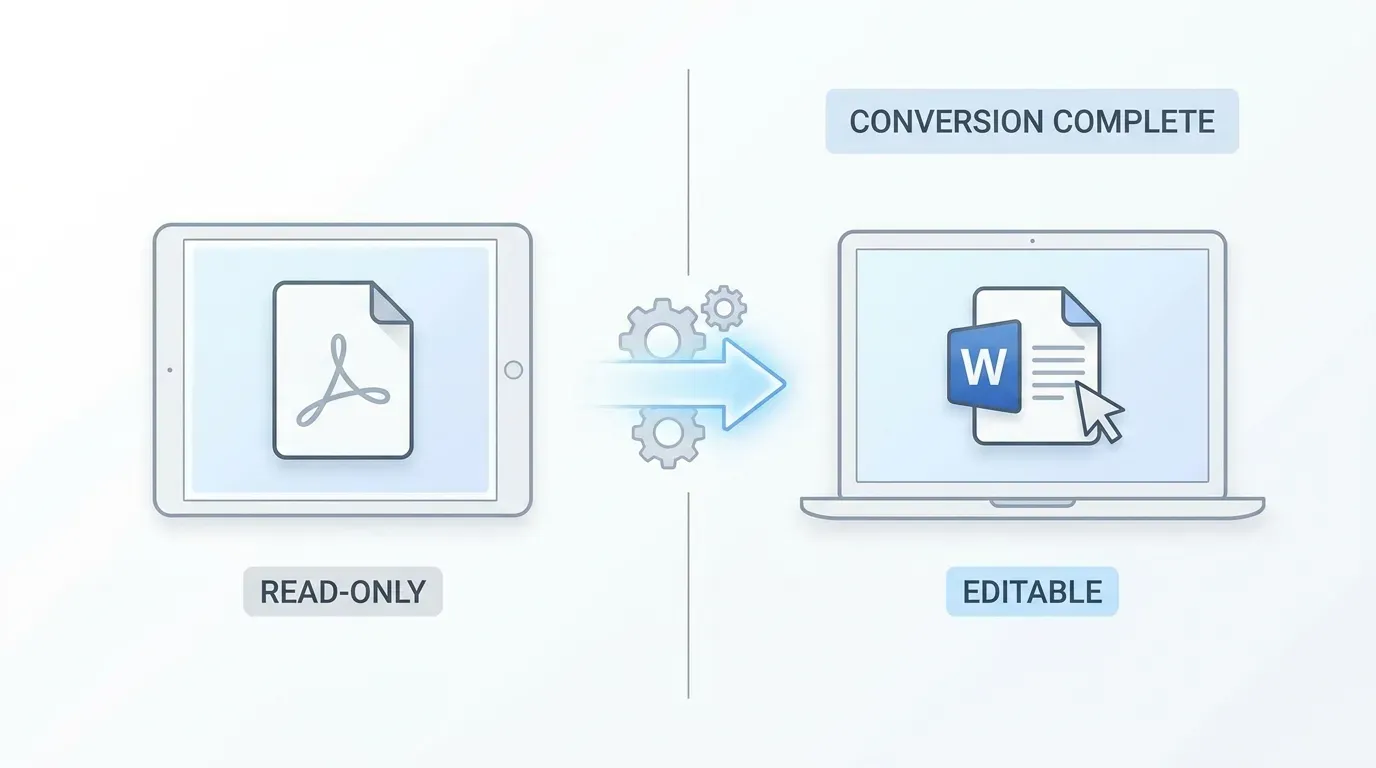
If you’ve ever needed to edit a PDF and discovered, mid-task, that PDFs aren’t really designed for editing, you’ve already understood why a good PDF-to-Word converter is a near-daily tool. This guide covers exactly how PDF-to-Word conversion works, what makes one converter better than another, and the best free and paid PDF-to-Word tools available in 2026 — including which ones handle scanned documents with OCR, which keep your data private, and which preserve formatting most accurately.
Why convert PDF to Word
PDFs were designed for display, not editing. The format locks fonts, layout, and content into a fixed canvas so the document looks identical on every device. That’s exactly the right design choice for final-form documents (contracts, invoices, reports, manuals). It’s exactly the wrong choice when you need to:
- Update a number in a contract before sending it back
- Translate a 40-page report
- Reuse formatted text in a new document
- Reformat for a different page size or template
- Run a redline review with tracked changes
- Extract a single section into a new document
- Replace boilerplate language across hundreds of documents
For all of those, you need an editable format — and Microsoft Word’s .docx is the editable format with the best round-trip fidelity, the widest tooling support, and the deepest collaboration features.
What our converter does differently
There are dozens of free PDF-to-Word tools online. Most are wrappers around the same underlying open-source engines, with similar limitations. Ours differs in five concrete ways:
-
Layout reconstruction, not just text extraction. Many tools dump PDF text into a single linear flow, losing columns, tables, and lists. Ours rebuilds the original layout structure as native Word constructs (tables, columns, headings) so the .docx looks like the PDF, not like an unstyled text dump.
-
Real OCR for scanned documents. When the PDF is a scan (image of text), naive converters return blank pages. Ours runs Tesseract-based OCR with language auto-detection across 30+ languages, so scanned PDFs come out as fully selectable, editable text.
-
Browser-side mode for sensitive files. Most converters require server upload. Ours has a “Process locally” toggle that runs the entire pipeline in your browser via WebAssembly. Your file never leaves your device. Slightly slower, infinitely more private — perfect for legal documents, medical records, or NDAs.
-
Batch conversion. Drop up to 20 PDFs at once. The output is a single ZIP of .docx files.
-
Zero signup, zero watermark, zero caps. No “free for 3 conversions per day” limits, no email harvesting, no upgrade nag.
How the conversion actually works
Under the hood, a PDF-to-Word converter does four discrete things in sequence:
1. Parse the PDF structure. The PDF specification stores text as positioned glyphs (“draw character ‘A’ at x=124, y=88, font=Arial-Bold, size=12pt”), not as paragraphs. The first job of the converter is to read every glyph, every image, every vector path.
2. Reconstruct logical text flow. Glyphs get grouped into words (by horizontal proximity), words into lines (by vertical alignment), lines into paragraphs (by line spacing and indentation), paragraphs into sections (by heading detection). Multi-column layouts get a column-detection pass to determine reading order.
3. Detect and rebuild structures. Tables are detected via grid-line analysis and column alignment of text. Lists are detected by leading bullet/number characters and hanging indents. Headings are detected by font size, weight, and spacing relative to surrounding text. Each detected structure is built as a native Word equivalent — <w:tbl> for tables, <w:numPr> for lists, Heading 1/Heading 2 styles for headings.
4. Serialize to .docx. A .docx file is a ZIP containing XML; the final step writes document.xml, styles.xml, numbering.xml, embedded image streams, and a manifest. The result is a Word document that opens cleanly in Word, Google Docs, LibreOffice, Apple Pages, and any other ECMA-376–compliant editor.
If the PDF is scanned, an additional OCR pass runs before step 2, turning the page images into recognized text using Tesseract 5 with neural-net-based recognition.
Step-by-step: how to convert a PDF to Word
The flow is intentionally minimal:
1. Drop the file (or files) in
Drag and drop, click to upload, or paste a URL. Supported inputs: PDF, scanned PDF, password-protected PDF (you’ll be prompted for the password), and digitally signed PDF.
2. Pick your output options
- Output format: .docx (default), .doc (legacy Word), or .rtf (universal rich text).
- OCR: Auto (default — runs only if needed), Always, or Off.
- Privacy mode: Server (faster) or Browser-side (more private).
- Layout fidelity: “Editable” (prioritizes ease of editing) or “Visual” (prioritizes pixel-perfect resemblance to the PDF).
3. Convert
Single small files (under 5 MB) convert in 2–4 seconds. Larger files (50+ MB, scanned, multi-language) take 15–60 seconds. Batch jobs run in parallel.
4. Download
You get a .docx file (or a ZIP if it’s a batch). Open in Word, edit, save, share. The file is also held on the server for 1 hour in case your download fails — after that, it’s auto-deleted.
Real-world example: converting a 28-page legal contract
A common use case: you receive a vendor contract as a flat PDF and need to redline it before signing.
The PDF has:
- Numbered sections (1, 1.1, 1.2, 1.3, 2…) — typical legal numbering
- Two columns on the cover page
- A 4-row × 6-column pricing table
- An exhibit with a scanned signature page
- Standard 11pt Times New Roman body text
- Header on every page with the contract title
What the converter does:
- Cover page reconstructs as two side-by-side text frames in Word
- Numbered sections become outline-numbered Word paragraphs (you can keep editing the numbering scheme)
- The pricing table becomes a native Word table — you can edit cells directly, add rows, change formatting
- The scanned signature page runs through OCR; signatures are preserved as images, surrounding text is editable
- The header is converted to a Word page header so it repeats correctly
- Body text retains its font and styling
You drop the file, click convert, download the .docx, open in Word, turn on Track Changes, and start redlining. Total elapsed time before you’re editing: about 20 seconds.
Benefits: formatting, security, speed
Formatting fidelity
A converter is judged on what survives the round trip. Our engine preserves:
- Headings (mapped to Heading 1–6 styles)
- Body paragraphs with original font and spacing
- Bulleted and numbered lists (with correct indentation levels)
- Tables (as editable Word tables, not screenshots)
- Embedded images (at original resolution)
- Hyperlinks (clickable in Word)
- Footnotes and endnotes
- Headers and footers
- Page numbers and section breaks
- Most margin and pagination settings
What survives less well: highly complex multi-column scientific layouts, drop-cap typography, and PDFs that were originally exported from desktop publishing tools like InDesign with custom kerning. Those still convert, but the visual fidelity is approximate, not exact.
Security and privacy
Three properties make this safe to use for sensitive documents:
- TLS-encrypted upload. Your file is encrypted in transit.
- Auto-deletion within 1 hour. Files don’t sit in our object storage. You can also click “Delete now” immediately after download.
- Browser-side mode. Toggle privacy mode and the file never leaves your device. Slower (single-threaded WASM) but private.
We never read file contents. We never train on your data. We never share files with third parties. Our privacy policy is human-readable and short — no dark patterns.
Speed
Most files convert in under 5 seconds on the server. Browser-side mode is slower (10–60 seconds depending on file size and CPU), but eliminates the upload trip. Batch conversion runs in parallel — 20 small files convert in roughly the time of one large one.
Use cases by profession
Students
Convert lecture-note PDFs to editable Word so you can rewrite, summarize, or highlight. Convert journal articles to extract specific sections into your bibliography or notes.
Lawyers and paralegals
Redline vendor contracts, NDAs, and SLAs without retyping. Round-trip a fully formatted Word document back to PDF after revisions. Tracked changes survive the round trip.
Translators and localization teams
Convert source PDFs to Word for use in CAT tools (Trados, memoQ, Phrase). Preserved tables and lists prevent re-formatting work post-translation.
Researchers and academics
Extract editable text from scanned historical PDFs for analysis. OCR handles older scans surprisingly well — even faded photocopies are 90%+ accurate at the word level.
Business analysts
Convert financial reports and pitch decks to Word for partial reuse in your own deliverables. Tables come through as native Word tables, ready to update.
HR and recruiters
Convert resume PDFs to Word to anonymize before sharing with hiring managers, or to standardize formatting across a candidate slate.
Real estate professionals
Convert lease agreements, disclosures, and inspection reports to Word for state-specific edits, then re-export to PDF for the final signature flow.
Medical and healthcare administrators
Convert scanned patient documents (with consent) to Word for transcription and EHR integration. Browser-side mode keeps PHI off third-party servers.
When the converter struggles (and what to do)
No tool is perfect. The cases where conversion quality drops:
Highly designed PDFs from InDesign or QuarkXPress. Magazines, brochures, marketing collateral with creative typography. These convert as text blocks but lose the original visual polish. Use “Visual fidelity” mode and accept some manual cleanup.
Heavily image-based PDFs (50%+ images by area). Our converter preserves images, but doesn’t try to reconstruct vector graphics as Word shapes. If you need the diagrams editable, export them separately as SVG and rebuild in Word.
Mathematical equations. PDF math is typically rendered as glyph paths, not LaTeX. Our converter will OCR them as text, which gets the symbols approximately right but doesn’t produce editable Word equations. For math-heavy documents, use a specialized math OCR tool.
Hand-written documents. Handwriting OCR is improving but still error-prone for cursive or messy script. Use Mode: “OCR with human review” if accuracy is critical.
Languages with right-to-left scripts (Arabic, Hebrew). Supported, but the column reading-order detection is less accurate. Verify the output for these documents.
Tips for best results
- Check whether your PDF is scanned or digital first. Open it; try to select a sentence. If text selects, it’s digital and OCR is unnecessary. If text doesn’t select, it’s a scan and OCR is required.
- For password-protected PDFs, you’ll need the password. The converter never bypasses passwords.
- For huge PDFs (100+ pages), split first using our PDF Splitter, convert in chunks, then merge the resulting Word files. Faster and easier to verify.
- For best OCR accuracy, scan or rescan the source at 300 DPI minimum. Lower-resolution scans produce noticeably more OCR errors.
- Always proofread complex tables. Even great converters occasionally merge cells incorrectly.
Best PDF to Word converters compared (2026)
After testing the major converters on contracts, scanned documents, financial reports, and academic papers, these are our recommendations.
Best free online PDF to Word converters
- Adobe Acrobat Online — PDF to Word — Highest formatting fidelity. Free for one conversion every 24 hours; subscription unlocks unlimited.
- Smallpdf — Clean, simple, supports OCR. Free for two conversions per day.
- iLovePDF — Reliable, fast, batch processing on the paid tier.
- Sejda — Generous free tier (3 tasks/hour), strong formatting preservation.
- PDF24 Tools — Free, no signup, runs in browser, supports OCR.
- LightPDF — Free, fast, no watermark.
Best paid PDF software (full-featured)
- Adobe Acrobat Pro DC — Industry standard. Most accurate conversion plus full PDF editing, signing, and forms.
- Foxit PDF Editor — Adobe alternative; cheaper, similar feature set.
- Nitro PDF Pro — Strong for Windows-heavy workflows; excellent OCR.
- Soda PDF — Affordable subscription, full-featured.
Best for scanned PDFs (OCR-heavy)
- ABBYY FineReader — Gold standard for OCR; multi-language support, layout retention.
- Adobe Acrobat Pro — OCR built into the conversion pipeline.
- OCR.space — Free OCR API; useful for batch automation.
Privacy-focused options
- Stirling-PDF — Open-source, self-hostable; runs in your browser or your own server.
- PDF24 Creator (desktop) — Local-only desktop app; files never leave your machine.
- LibreOffice — Open PDFs directly in LibreOffice Draw, save as .docx; entirely offline.
Quick comparison
| Tool | Best for | OCR | Privacy | Cost |
|---|---|---|---|---|
| Adobe Acrobat Online | Highest fidelity | Yes | Server | 1 free/day, $9.99/mo unlimited |
| Smallpdf | Daily online use | Yes | Server | 2 free/day, $9/mo |
| iLovePDF | Batch jobs | Yes | Server | Free + $7/mo |
| Sejda | Generous free use | Yes | Server | 3 tasks/hr, $7.50/mo |
| PDF24 | Quick free conversion | Yes | Browser-side option | Free |
| Adobe Acrobat Pro | Professional workflow | Yes | Local | $19.99/mo |
| ABBYY FineReader | Best OCR | Best | Local | $199 one-time |
| Stirling-PDF | Self-hosted privacy | Yes | Self-hosted | Free |
Frequently asked questions
Is the PDF to Word converter really free?
Yes. The converter is fully free, with no daily caps, no watermark, and no signup. You can convert files up to 100 MB and process up to 20 files in a single batch.
Does it preserve images and tables?
Yes. The conversion engine reconstructs tables as native Word tables (not images), embeds raster images at original resolution, and preserves text styling, headings, lists, columns, and most paragraph spacing. Complex multi-column layouts are flattened to a logical reading order.
Are my files safe and private?
Files are uploaded over TLS, processed on isolated workers, and automatically deleted within one hour of conversion. We never read, share, or train on file contents. For maximum privacy, the tool also has a browser-side mode that processes files entirely in your device without any upload.
Can it handle scanned PDFs (OCR)?
Yes. If the PDF is scanned (i.e., contains images of text rather than selectable text), the converter automatically detects this and runs OCR to extract editable text. OCR supports English, Spanish, French, German, Portuguese, Italian, Dutch, and 25+ other languages with high accuracy.
What’s the maximum file size?
100 MB per file. For larger files, split using our PDF Splitter first, convert each part, and re-merge in Word. Browser-side mode has a higher practical limit (depending on your device’s RAM).
Will the converted Word document look exactly like the PDF?
Visually similar, not pixel-identical. Word and PDF are different rendering models — Word reflows text by paragraph; PDF positions every glyph absolutely. Headings, body text, tables, and lists round-trip cleanly. Highly designed magazine-style layouts convert as approximations.
Can I convert a password-protected PDF?
Yes, if you have the password. You’ll be prompted to enter it before conversion. The converter does not bypass passwords or try to crack them.
Does it support Mac and Windows?
The converter runs in any modern browser (Chrome, Edge, Firefox, Safari, Brave) on Windows, macOS, Linux, iPadOS, and Android. The output .docx opens in Microsoft Word, Apple Pages, Google Docs, LibreOffice, OnlyOffice, and any ECMA-376–compliant editor.
A clean, accurate PDF-to-Word conversion shouldn’t cost you a subscription, an email address, or your privacy. Drop your file, get a real editable .docx, and get back to the work that actually matters.