Image Compressor: Reduce JPG, PNG & WebP Size Without Losing Quality
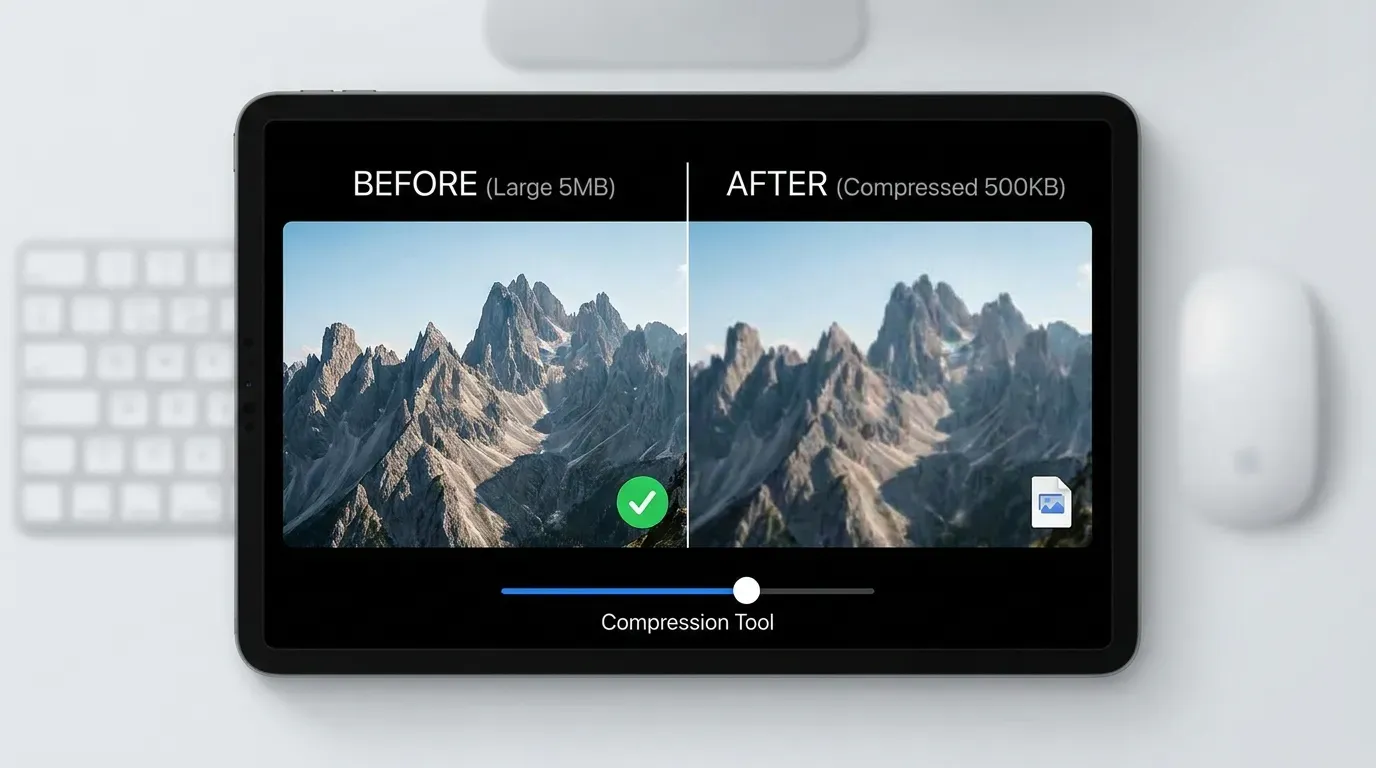
Image weight is the silent killer of website speed. Every uncompressed photo on a product page, every oversized hero image on a landing page, every uploaded screenshot in a documentation site adds 200–800 KB to the page weight. Multiply by dozens of images per page and millions of users, and the bandwidth costs become real money — and the slow-loading pages cost conversions, SEO ranking, and user satisfaction.
This guide explains the difference between lossy and lossless compression, when to use JPG vs PNG vs WebP vs AVIF, and the best free image compression tools — including browser-based options that never upload your files, plus enterprise CDN-integrated solutions for production sites.
Why image weight kills page speed and SEO
Google’s Core Web Vitals are now a confirmed ranking signal. Three metrics:
- LCP (Largest Contentful Paint) — usually a hero image. Target: under 2.5s.
- INP (Interaction to Next Paint) — replaced FID in 2024. Target: under 200ms.
- CLS (Cumulative Layout Shift) — image-related layout shifts hurt this. Target: under 0.1.
LCP is most directly affected by image weight. A 2.5MB hero image on a 4G mobile connection takes 5–8 seconds to load. Compress that image to 250KB and LCP drops to under 1 second.
Beyond Core Web Vitals:
- Page weight directly correlates with bounce rate. Google research found that as page weight grows from 1MB to 4MB, bounce rate roughly doubles.
- Mobile users on metered connections leave heavy pages. A 5MB image-heavy product page eats noticeable data and patience.
- CDN bandwidth costs scale with image size. Compressing 100 product images from 800KB to 200KB saves 60GB/month on a site doing 1M page views.
- Conversion rates are sensitive to load time. Amazon’s classic finding: every 100ms of delay costs 1% in sales.
Compressing images is one of the highest-leverage performance optimizations possible. It’s free, fast, and the user experience improvement is immediately visible.
What an image compressor does (lossy vs lossless)
Lossless compression removes redundant data (repeated bytes, predictable patterns) without discarding any visual information. The decompressed image is bit-for-bit identical to the original. Typical savings: 5–25% for natural photos, 50–80% for graphics with flat colors.
PNG uses lossless compression by default. JPG can be slightly losslessly optimized after lossy compression (removing non-essential metadata, optimizing Huffman tables) for additional 5–15% savings.
Lossy compression discards visual information that’s perceptually irrelevant to humans. Done well, the eye can’t tell the difference. Done poorly, you see artifacts (blocky JPGs, banding, color shifts).
JPG is the standard lossy format for photos. WebP and AVIF are modern lossy formats that achieve significantly better compression at equivalent quality.
The right tool offers both modes:
- Lossy mode for photos (when smaller file matters more than perfect bit-for-bit fidelity)
- Lossless mode for graphics, screenshots, logos with transparency
Tool usage guide with quality-slider examples
The interface is intentionally minimal:
1. Drag and drop your images
Up to 20 files at once. Supported inputs: JPG, JPEG, PNG, WebP, AVIF, GIF. The tool processes them locally.
2. Pick the output format
- Same format — keep JPG as JPG, PNG as PNG (good if you can’t change the extension on your site)
- JPG — best for photos when you don’t need transparency
- PNG — best for graphics with transparency
- WebP — best modern format, supported in 96%+ of browsers, 25–35% smaller than JPG
- AVIF — most aggressive, 50–60% smaller than JPG, 88%+ browser support
3. Choose the quality
A slider from 0 to 100. Useful reference points:
- 95–100: near-lossless, 10–25% savings vs original
- 85–94: very high quality, 30–45% savings, no visible difference for most images
- 75–84: high quality, 50–70% savings, default for web use
- 65–74: medium quality, 70–80% savings, fine for most blog images
- 50–64: moderate compression, 80–88% savings, may show artifacts in detailed photos
- Below 50: aggressive, 88%+ savings, suitable only for thumbnails
The default is 80, which gives 60–75% savings on typical photos with no visible quality loss.
4. Optional: resize
Many “image compression” needs are actually “image resizing” needs — a 4000×3000 photo doesn’t need to be 4000×3000 on a webpage that displays it at 800×600. Set a max width/height and the tool resizes before compression.
5. Process
A live preview appears with side-by-side original vs compressed view, byte savings percentage, and a quality assessment. You can adjust the slider and re-render in real-time.
6. Download
Single image: direct download. Batch: ZIP archive. Filenames preserve the original.
Quality slider examples (real photos)
A 2.4MB iPhone photo (3024×4032 portrait):
| Quality | File size | Savings | Visible difference? |
|---|---|---|---|
| 100 | 2.4MB | 0% | None (no compression) |
| 95 | 1.8MB | 25% | None |
| 85 | 920KB | 62% | None |
| 75 | 640KB | 73% | None |
| 65 | 470KB | 80% | Very subtle softening, undetectable in normal view |
| 50 | 310KB | 87% | Subtle artifacts in shadows on close inspection |
| 35 | 195KB | 92% | Visible artifacts in sky and skin tones |
| 20 | 110KB | 95% | Obvious artifacts everywhere |
For most web use cases, quality 80 hits the sweet spot — over 70% savings with no perceptible quality difference. Quality 65 is fine for blog post images. Quality 50 is fine for thumbnails. Below 35, artifacts become obvious on most images.
Benefits: faster sites, lower bandwidth, better Core Web Vitals
Concrete impact:
- Faster LCP. A compressed hero image renders 3–10× faster on typical mobile connections.
- Lower CDN bills. A 70% size reduction means 70% bandwidth savings; on a busy site this is real money.
- Better SEO rankings. Core Web Vitals are a confirmed ranking signal; better LCP improves rank, especially in mobile-first indexing.
- Higher conversion rates. Faster pages convert better. The relationship is well-documented across e-commerce, SaaS, and content sites.
- Reduced mobile data costs for users. On metered connections, lighter pages = happier users.
- Improved accessibility. Slower devices and connections (often more common in emerging markets) benefit most from compression.
- Privacy. Browser-side compression keeps sensitive images on your device — important for portrait subjects, confidential documents, and pre-publication content.
Use cases by user type
Bloggers and content creators
Compress images before uploading to your CMS (WordPress, Ghost, Substack). Many CMSes don’t compress aggressively by default; pre-compressing locks in the savings.
E-commerce sellers
Product photography requires high quality but also fast loading. Quality 75–80 hits the sweet spot for most product images. Use the bulk mode to process entire catalogs in one batch.
Designers
Compress design exports before sharing with clients (smaller email attachments, faster Slack uploads). Use lossless mode for graphics with text or sharp lines.
Email marketers
Email clients limit attachment size and inline images affect deliverability. Compress before embedding.
Photographers (web portfolio)
Maintain a separate compressed version for web use; keep originals in lossless storage. Resize-and-compress to display dimensions for max savings.
Documentation writers
Screenshots are typically PNG, often unnecessarily large. Convert to WebP at quality 85 for 60%+ savings without visible loss.
Developers building image pipelines
Use the tool’s API or batch CLI alternative for automated workflows. Most modern build tools (Next.js Image, Astro, Eleventy plugins) include similar compression natively, but the standalone tool is useful for pre-build processing.
JPG vs PNG vs WebP vs AVIF — which to use when
Quick decision framework:
JPG / JPEG
Use for: photos, complex images with many colors and gradients Avoid for: images with transparency, sharp text, line art, screenshots Why: Excellent compression for natural photos, terrible for graphics with sharp edges
PNG
Use for: logos, icons, screenshots, graphics with transparency, line art, charts Avoid for: photos (unnecessarily large) Why: Lossless, supports transparency, but enormous file size for photographic content
WebP
Use for: virtually anything in 2026 — photos, graphics, transparency, animation Avoid for: environments without WebP support (rare; check legacy IE/old Safari) Why: 25–35% smaller than JPG, supports transparency like PNG, supports animation like GIF
AVIF
Use for: maximum compression where modern browser support is acceptable Avoid for: sites needing universal compatibility (88%+ support but the 12% can matter) Why: Best-in-class compression, ~60% smaller than JPG at equivalent quality
Modern best practice
Use the <picture> element with format fallbacks:
<picture>
  <source srcset="image.avif" type="image/avif">
  <source srcset="image.webp" type="image/webp">
  <img src="image.jpg" alt="...">
</picture>
Browser picks the best format it supports. AVIF for modern browsers, WebP for slightly older, JPG fallback for everything.
Bulk processing tips
For sites with hundreds or thousands of images:
1. Audit first. Identify the heaviest pages and the largest images on them. Optimize the worst offenders first; the lightest images aren’t worth the effort.
2. Pre-compress before uploading. It’s faster than relying on CMS auto-compression, and you keep control of the quality.
3. Use consistent quality settings. A site with mixed compression levels looks inconsistent. Pick a quality (typically 80 for photos, 90 for product images, 95 for hero images) and apply uniformly.
4. Resize alongside compression. A 4000px image displayed at 800px is wasteful. Set the resize-to-display-size first, then compress.
5. Generate multiple sizes. For responsive design, generate 1×, 2×, 3× variants. Most CMS plugins do this automatically; if not, use the tool’s batch mode with size variants.
6. Don’t recompress JPGs repeatedly. Each round of lossy compression compounds artifacts. Always start from the highest-quality original.
7. Strip EXIF metadata. Photos from phones and cameras carry EXIF (GPS coordinates, camera model, date) that adds 5–50KB and may be a privacy concern. The compressor strips EXIF by default.
Best image compression tools (2026)
For one-off compression, browser-based tools are best (privacy + speed). For production sites, CDN-integrated services automate the entire pipeline.
Best free online image compressors
- TinyPNG / TinyJPG — Industry favorite. Smart lossy compression; usually 50–80% size reduction with no visible quality loss.
- Squoosh (by Google) — Browser-side (private) compression with full control over format, quality, and resizing. Open source.
- Compressor.io — Lossless and lossy options for JPG, PNG, GIF, SVG.
- Optimizilla — Bulk JPG/PNG compression with quality slider.
- iLoveIMG — Bulk compression and a wide range of image utilities.
- Kraken.io — Strong API + web app; popular among developers.
- ShortPixel — Bulk online compressor + WordPress plugin.
- Pngyu — Free desktop PNG compressor (cross-platform).
Best desktop image compression apps
- ImageOptim (Mac) — Free, drag-and-drop, lossless by default.
- FileOptimizer (Windows) — Free, supports many formats.
- Caesium — Cross-platform, batch compression.
- XnConvert — Cross-platform batch image processor.
CDN-integrated image optimization (production)
- Cloudflare Images — Image optimization + delivery via Cloudflare CDN.
- Cloudinary — Most comprehensive image-management platform; URL-based transformations.
- Imgix — Real-time image processing CDN.
- ImageKit — Cheaper Cloudinary alternative; strong free tier.
- Bunny Image Optimizer — Affordable image optimization service.
WordPress image optimization plugins
- Smush — Most popular free WordPress image optimizer.
- ShortPixel Image Optimizer — Strong free + paid tiers.
- Imagify — From the creators of WP Rocket.
- Optimole — Adaptive optimization + CDN delivery.
Format-specific tools
- Jpegoptim — CLI JPEG optimizer (open source).
- Mozjpeg — Mozilla’s JPEG encoder (best quality/size tradeoff).
- Pngquant — Best-in-class PNG quantizer.
- Sharp (Node.js) — Fast image processing library used by many static-site generators.
- Cwebp / Libwebp — Google’s official WebP encoder.
AVIF-specific tools
Performance auditing
- Google PageSpeed Insights — Identifies images slowing your page.
- WebPageTest — Real-device performance testing.
- GTmetrix — Image-specific waste reporting.
Frequently asked questions
Does the compressor upload my images to a server?
No. The compressor runs entirely in your browser using WebAssembly. Images never leave your device. This makes it safe for sensitive or confidential photos and dramatically faster than server-based competitors.
How much can I shrink a JPG without visible quality loss?
Most JPGs can be compressed 60–85% smaller at quality 75–85 without any visible difference. Photos from modern phones (iPhone, Pixel) are over-encoded by default and tolerate aggressive compression.
Should I use WebP or AVIF in 2026?
WebP is the universal default — supported in 96%+ of browsers and produces 25–35% smaller files than JPG. AVIF is even smaller (50–60% vs JPG) with 88%+ support. For maximum compression with universal support, use WebP. For cutting-edge sites with graceful fallback, use AVIF with WebP fallback.
What’s the maximum file size and batch size?
No hard size limit since processing is local; practical limits depend on your device. Most modern devices handle 50MB+ images comfortably and 20–50 image batches in under a minute.
Will compression affect SEO?
Positively. Smaller images → faster page loads → better Core Web Vitals → better SEO. There’s no SEO downside to compression as long as you don’t degrade quality to the point of obvious artifacts.
How does this compare to TinyPNG, iLoveIMG, or Compressor.io?
Similar end results; ours runs locally (privacy + speed advantage) while the others run on servers (slightly higher quality control in some edge cases). For sensitive content, ours is preferable. For maximum quality on a single critical hero image, server-based tools sometimes have a slight edge with manual quality tuning.
Can I compress GIFs?
Yes — convert to WebP or AVIF (both support animation) for dramatic file-size reduction. Animated GIFs are notoriously inefficient; converting often produces 80–95% size reduction.
Why does PNG of a photo come out larger than JPG?
PNG is lossless, JPG is lossy. For photos with millions of colors and gradients, lossless encoding requires significantly more data. Use PNG only for graphics with transparency or when bit-perfect fidelity matters.
Image compression is the cheapest performance win on the internet. Compress before publishing, and your site will be faster, your bandwidth bill smaller, and your users happier.